Job photos and files
Every job has one place for its photos, plans, permits and PDFs. Open the job, tap Docs and choose Files. What you put there stays with the job, and the client sees only what you share.
Add photos and files.
Tap the upload button. On a phone pick Take Photo, Choose from Gallery or Browse files; on a computer you can also drop files from your desktop onto the list. Images, PDF, Word, Excel, CAD and ZIP files are taken, up to 50MB each, and video clips up to 100MB. Pick as many as you like: they go up 10 at a time with an Uploading N of M bar, a failed batch tries again by itself, and anything still stuck waits under Retry. The camera icon is Keep Shooting: the camera stays open, each photo uploads in the background and Done closes it.
Make folders.
Tap Create folder and name it, for example Site photos or Permits. Open a folder to upload straight into it.
Move one file.
Open the file's menu (the three dots) and choose Move to folder, then the folder. Move to root takes it back out.
Move or delete many at once.
Open any file's menu and choose Select. Now each tap checks or unchecks a file, and a bar shows how many are selected with Move to folder and Delete Selected. Delete asks once for all of them. A file that fails stays selected so you can try again.
Tag photos.
In a file's menu choose Tags, pick one of the job's tags or type a new one (framing, before, roof) and Save. Tags from CompanyCam come in with the photos. Tap a tag above the list to see only those files; tap it again to see all.
Choose what the client sees.
Files are internal. In a file's menu, Show in client portal puts it in the client's portal; Hide from client portal takes it back. Shared plans, measurements and photos also show under the estimate on the link the client gets by e-mail or text, so you share a file once on the job and every estimate carries it.
Hand the photos to the client or the adjuster
The photo button above the list makes a Photo report (PDF): the job's photos two per row, grouped by day, each with the time, who took it and its note, in the language you use.
With two or more photos, Before and after (PDF) asks you to tap the before photo and then the after photo. Add another pair for each room; the PDF gets one page per pair, side by side.
Before and after (link) uses the same picks and makes a 30-day link with those pairs side by side (CompanyCam Pages style). Photos added later stay off it.
Photo link for the client puts the job's photos in one link anyone can open for 30 days. Photos added later stay off that link, so make a new one when there are new photos.
Add to my showcase puts the job on your public page of work, for your website, with the town and never the street. Settings, Showcase has the code for that page and for a Map of your jobs: the same jobs as pins placed near the town, never on the house.
Get photos from people without an account
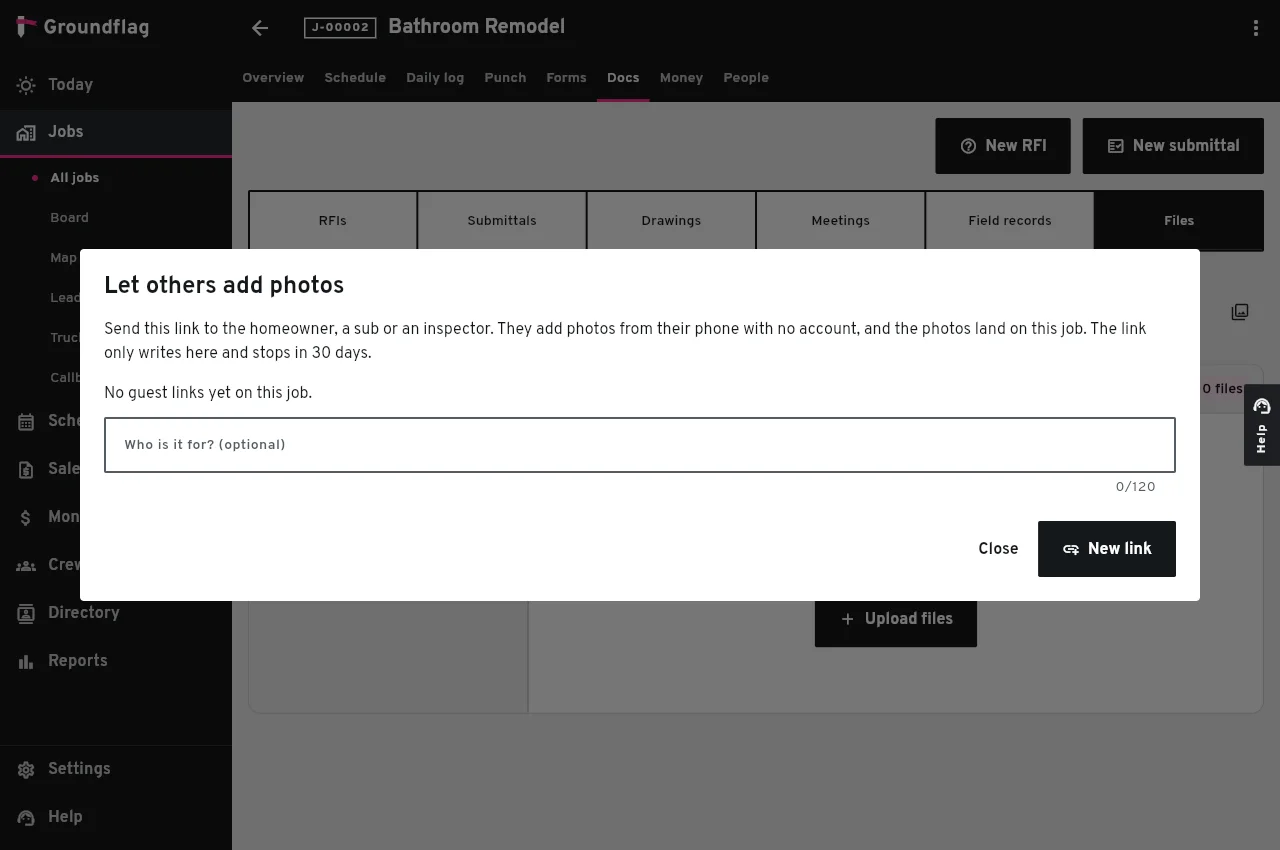
Open the job, then Docs, Files. Tap Share photos above the list and choose Let others add photos.
Who is it for? (optional) lets you label the link, for example Homeowner Dana. Tap New link. On the next screen, use Copy Link to paste it into a message, or Share to choose an app. Creating the link does not send a message. The recipient needs no account and no password, and does not take a seat.
They type their name and add photos or PDFs: 10 files per send, 20MB each and 24MB in all. A link takes 200 files and stops after 30 days.
The files land in this job's Files marked Uploaded by, with the name they typed (guest), and you get a notification. The list of links shows the latest photo each one received.
Close link stops it right away, and what already came in stays on the job. The link only adds files: the person never sees the job or other people's photos, and nothing shows in the client portal until you choose it.
Coming from CompanyCam
Your CompanyCam photos come in by token, project by project, and new photos keep arriving while you switch over (see Move your CompanyCam photos into Groundflag).
Questions
Can I draw on a photo?
Yes, on any photo of the job: open its menu, choose Mark up photo, draw arrows, dots and Xs, zoom or crop, and save. The marked copy is added beside the original, which stays as it was. Punch list items and safety reports have the same marking.
Can my crew comment on a photo?
Yes. Open a job photo full screen and tap Comments (the number is how many are waiting). Type a note such as which wall this is, and the whole team sees it under the photo. Comments are internal: the client portal and your showcase never show them.
Does the client see every file?
No. Files stay with your team until you choose Show in client portal on a file.
Do I attach plans to each estimate?
No. A file shown in the client portal is listed under every estimate of that job, on the link the client opens. Estimate and invoice PDFs are not repeated there.
Keep reading
Questions? Write to hello@groundflag.com